How to change time on smartwatch: check whether the watch takes its clock from the paired phone. If it does, fix the phone or switch off the watch’s automatic option, then set the time manually.
The right route depends on the brand, and the steps below cover Apple Watch, Galaxy Watch, Wear OS and Fitbit. Clock settings are one of the first things to get right when you choose and set up the best health tracker for your routine.
Why a smartwatch shows the wrong time
A smartwatch usually shows the wrong time because it is following a source you did not expect. Most modern smartwatches sync with the paired smartphone and update the time automatically from the phone’s settings. If the watch is wrong, the phone is often wrong, or the two devices are set to different time zones.
This gives you a simple order of work:
- Find the source. Decide whether the watch follows the phone or has been set manually.
- Fix the source. If the watch follows the phone, correct the phone. If it is manual, correct it on the watch or in its app.
- Compare time zones. The same guide advises checking the time zone settings on both the smartphone and the smartwatch.
- Check the connection. A watch that has lost its link to the phone cannot pick up a corrected time.
Trying to set the time manually on a watch that is still following the phone is the most common reason a change does not stick. The brand sections below show where each platform keeps its automatic switch.
Quick reference by platform
| Platform | Where the time comes from | Where to change it | Planning use |
|---|---|---|---|
| Apple Watch | Phone, when Set Automatically is enabled | Watch app > General > Date & Time | Leave automatic on unless you want a deliberate manual setting. |
| Galaxy Watch | Network or companion phone | Watch: Settings > General > Date & time | Manual entry needs Standalone mode and the Automatic switch off. |
| Wear OS | Paired Android phone | Wear OS app on the phone, plus the phone’s own time settings | Fix the phone first, then check the watch. |
| Fitbit | Fitbit app | Profile picture > Advanced Settings > Time Zone | Turn off automatic time zone only if it picks the wrong zone. |
Menu paths come from a general smartwatch time guide and Verizon’s Galaxy Watch support page. Menu names can shift between software versions, so use them as a map rather than a script.
Changing the time on an Apple Watch
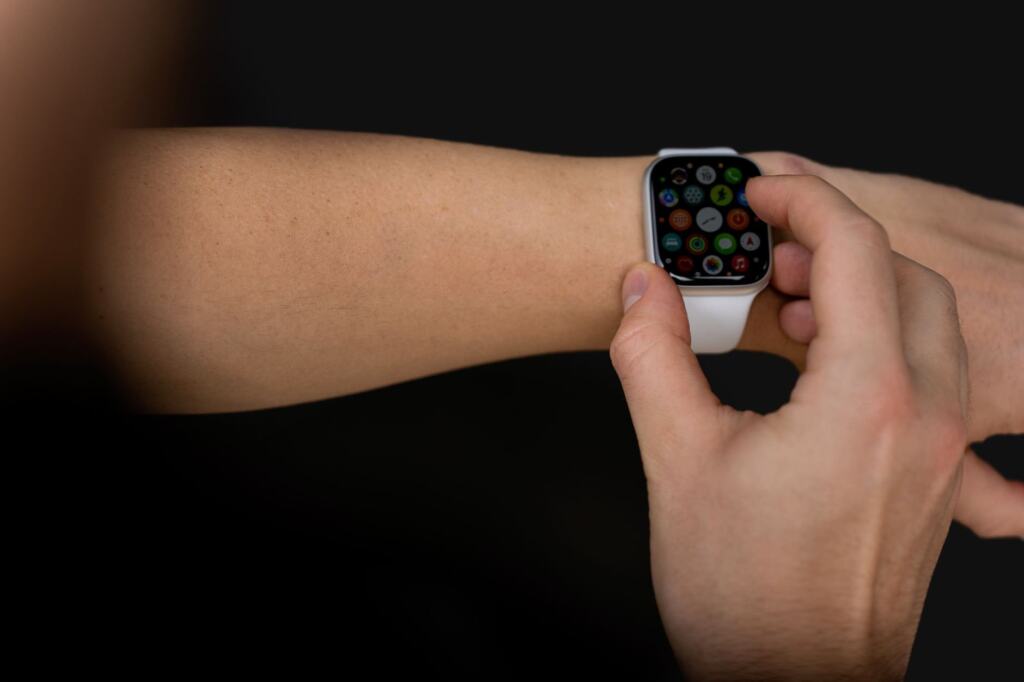
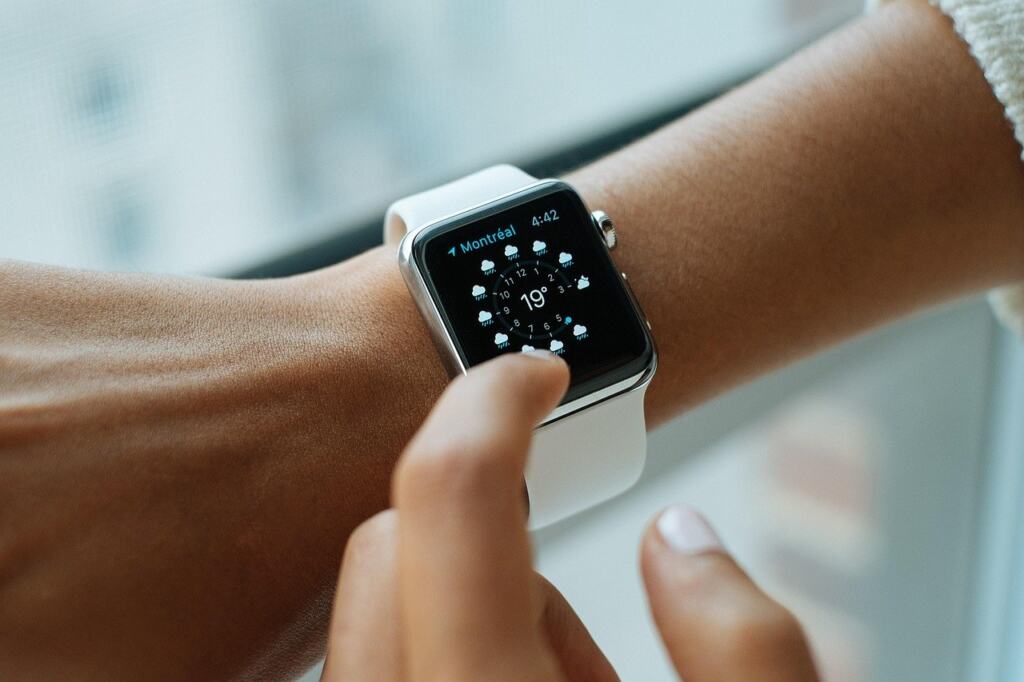
To change the time on your Apple Watch, open the Watch app on the paired iPhone and go to General, then Date & Time. The Set Automatically option decides who is in charge. With it enabled, the watch takes its time from the phone. Disable it only if you need to set the time yourself.
When to leave Set Automatically on
Leave it on if the watch is simply a few minutes off or shows the wrong zone after travel. In that case the phone is the real problem, so correct its date, time and time zone and let the watch follow.
When to set the time manually
Switch Set Automatically off only when you want the watch to differ from the phone. The trade-off is that a manual setting no longer follows the phone, so you become responsible for correcting it after a trip or a clock change.
Changing the time on a Galaxy Watch
A Galaxy Watch normally gets its date and time from the network or the companion phone. Verizon’s support guide says the date and time can only be adjusted when the watch is in Standalone mode, and that Automatic must be turned off before you can enter them by hand. A Galaxy Watch Ultra guide gives the same picture for that model: time is set from the phone by default and can be set manually when the watch is not connected.
Manual steps on the watch
- Open Settings, then General, then Date & time.
- Turn the Automatic switch off.
- Set the date.
- Set the time.
- Select the time zone, then choose the appropriate city.
The Ultra guide walks through this on the watch, starting with a swipe up from the bottom of the screen, so expect a longer path on that model than the outline above suggests. A third-party guide describes the same route as General, then Date and Time.
Who this suits
Manual setting suits a watch used without a phone nearby. If the phone is paired and connected, correcting the phone is the simpler fix. Before fiddling with time at all, make sure the Galaxy Watch software is up to date, since an outdated build is one possible cause of a wrong clock.
Wear OS and Fitbit
Wear OS watches
Wear OS watches pair with an Android phone through the Wear OS app for Android devices. Because these watches follow the phone, start with the phone’s own date, time and time zone settings. Then open the Wear OS app, confirm the watch shows as connected, and look at the watch afterwards. Setting the watch by hand is the fallback, not the first move.
Fitbit
Fitbit puts the time zone in the app rather than on the watch. Tap your profile picture in the Fitbit app, open Advanced Settings and find Time Zone. If the automatic zone is picking the wrong place, the same guide says you can disable automatic time zone and set it manually. That is useful after travel, but turn automatic back on once you are settled so the zone does not go stale.
Fixing sync problems
When a corrected phone clock still does not reach the watch, work through the connection before changing settings repeatedly.
- Restart both devices. Restarting both the phone and the watch can resolve connection issues that block the update.
- Check Bluetooth. Bluetooth needs to be enabled on both devices for the watch to receive the phone’s time.
- Compare time zones. A watch that is exactly some whole hours off usually points to a zone mismatch rather than a faulty clock.
- Update the software. On a Galaxy Watch, bring the watch software up to date before changing anything else.
- Look at the mode. A Galaxy Watch in Standalone mode takes manual settings, while a connected one defers to the phone, so a manual change can appear to be ignored.
If the time changes and then reverts, the watch is probably still following a source you have not corrected, which is the cue to go back to the quick reference table.
Switching to 24-hour format and checking the zone
To switch to 24-hour format, look in the watch’s time settings. The 24-hour option can usually be changed in the time settings, though the exact label and location vary by brand. On a phone-synced watch, the format may also be tied to the phone’s clock setting, so check the phone if the watch does not change.
Time zone is the second thing to confirm. On Apple Watch it follows the Set Automatically choice, on Galaxy Watch it is the last step of manual setup, and on Fitbit it lives in the app. After any trip, check the zone on both the phone and the watch.
Why a correct clock matters for tracking
Everything the watch reports is anchored to its clock, so fix the time zone before judging any reading. If you also use other connected devices, such as the scale covered in Best Smart Scale 2026: Accurate, Insightful Choices For Every Goal – Bioconnected, keeping every device on the same zone makes their records easier to compare.
The same applies if you rely on the watch for safety features. A watch set to the wrong place is one more variable to remove, as discussed in Fall Detection Technology: The Complete Guide To Smarter, Safer Aging In 2026 – Bioconnected. The practical habit is to leave automatic settings on, and to turn them off only for a reason you can name.
Frequently asked questions
How do I change the time on my Apple Watch?
Open the Watch app on the paired iPhone, go to General, then Date & Time. Keep Set Automatically enabled to follow the phone, or disable it to set the time yourself.
Why is my smartwatch time wrong?
Most watches take their time from the paired phone, so a wrong phone clock, a time zone mismatch between the two devices or a lost connection are the usual causes. On a Galaxy Watch, outdated software can also be a factor.
How do I switch to 24-hour format?
Look in the watch’s time settings, where the format can usually be changed. If the watch follows the phone and the option is missing, check the phone’s clock format.
Can I set the time on a Galaxy Watch without my phone?
Yes. In Standalone mode, open Settings, General, then Date & time, turn Automatic off, and set the date, time, time zone and city.
Where is the Fitbit time zone setting?
On a Fitbit, the zone is found in the profile menu under Advanced Settings. If automatic detection picks the wrong zone, switching that option off lets you choose it yourself.